
First, follow these steps to install the Downloader app:
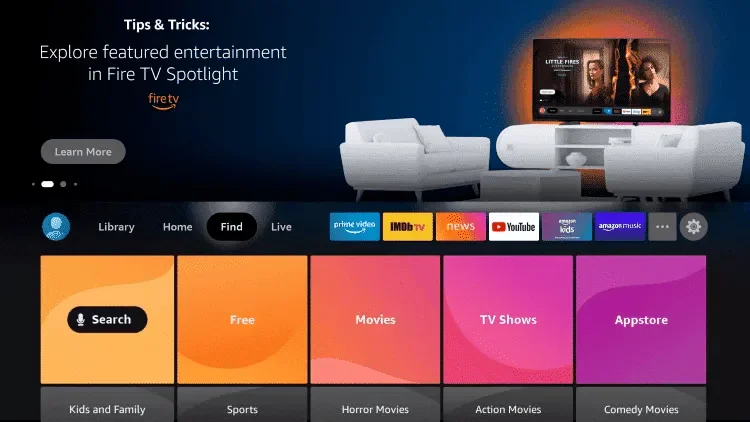
- From the home screen of your device, hover over the Find option.
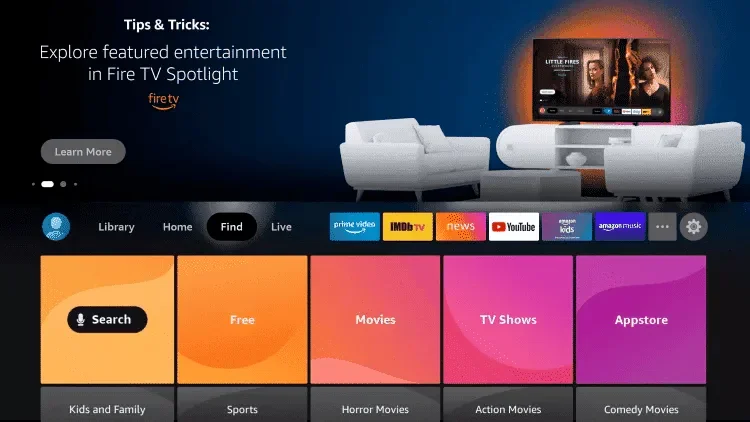
- Click Search.
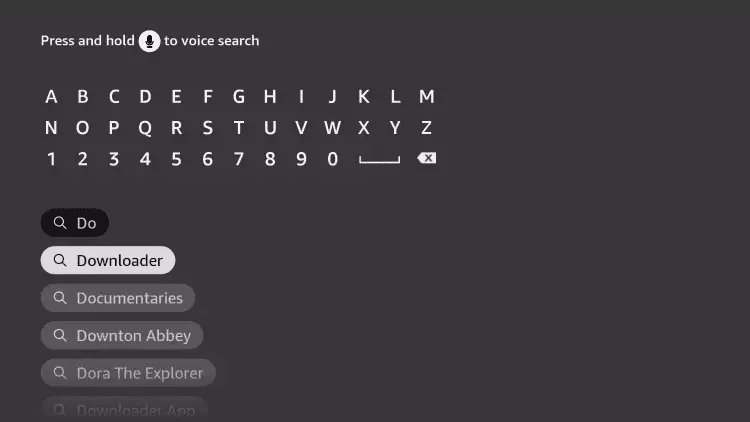
- Search for and select Downloader.
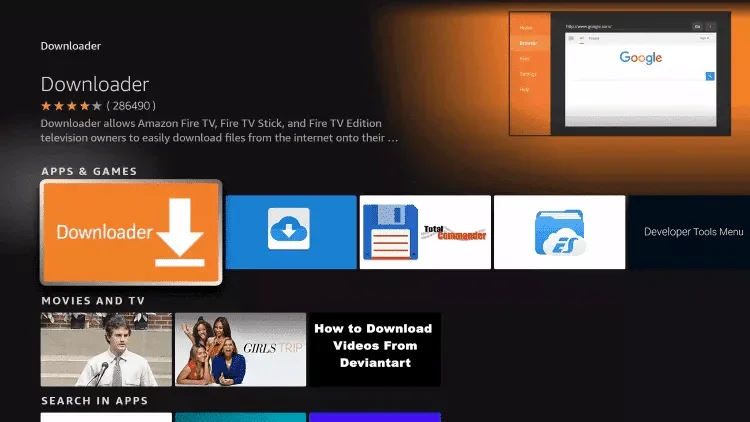
- Choose the Downloader app (Orange Icon) and Click Download.
- Once installed, go to
Settings >
My Fire TV >
Developer Options >
Install Unknown Apps
and turn Downloader ON. - Open Downloader and enter one of the codes below to install your preferred app:
GOLDEN SMART
Code :
2257663
Best for high-end devices
IBO GOLD
Code :
3816474
Fast & User Friendly
Tivi Gold
Code :
2072828
Premium Interface
- Click Go and wait for the file to download.
- Click Install and then Open.
- Login with the Username & Password sent to your email.
Follow steps 1–5 above to install Downloader, then:
- Enter URL:
https://shorturl.at/hsMW1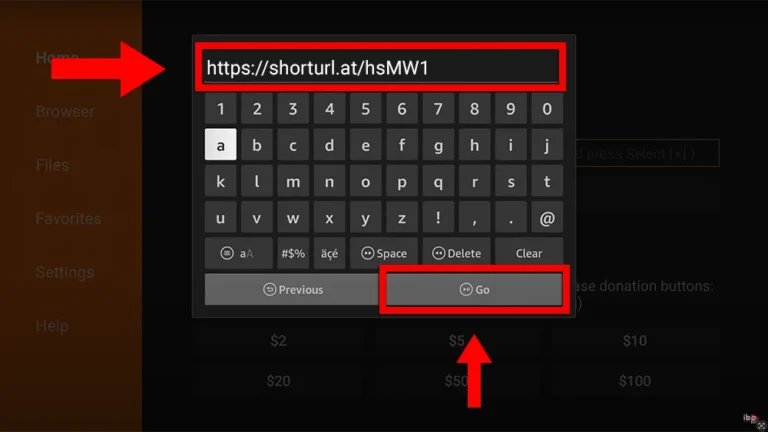
- Click Install and Open the App.
- Go to Account to see your Device ID and Key.
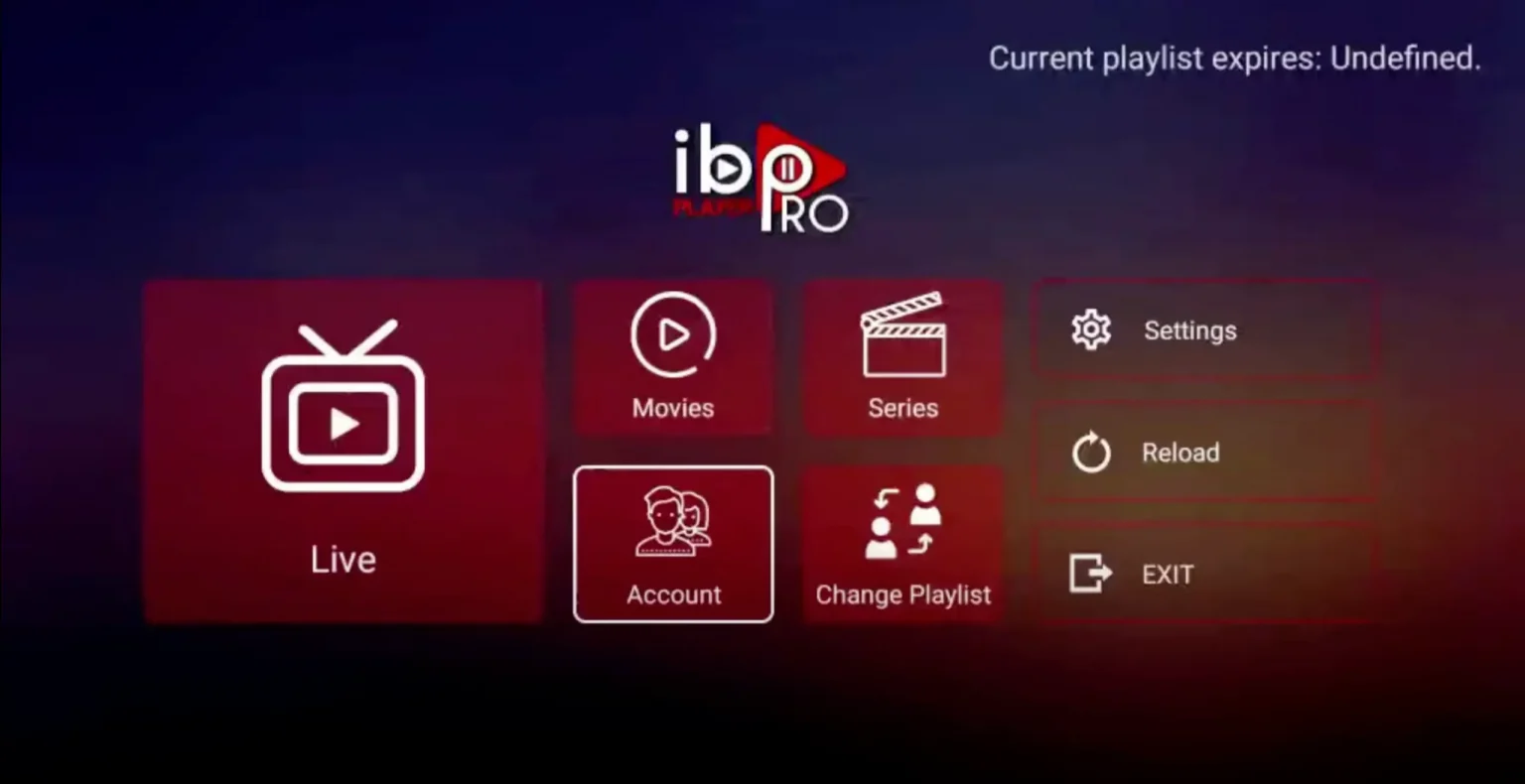
- On your phone/PC, visit
iboproapp.com
→ “Manage Playlists”. - Login with your Device ID & Key.
- Click Add XC Playlist.
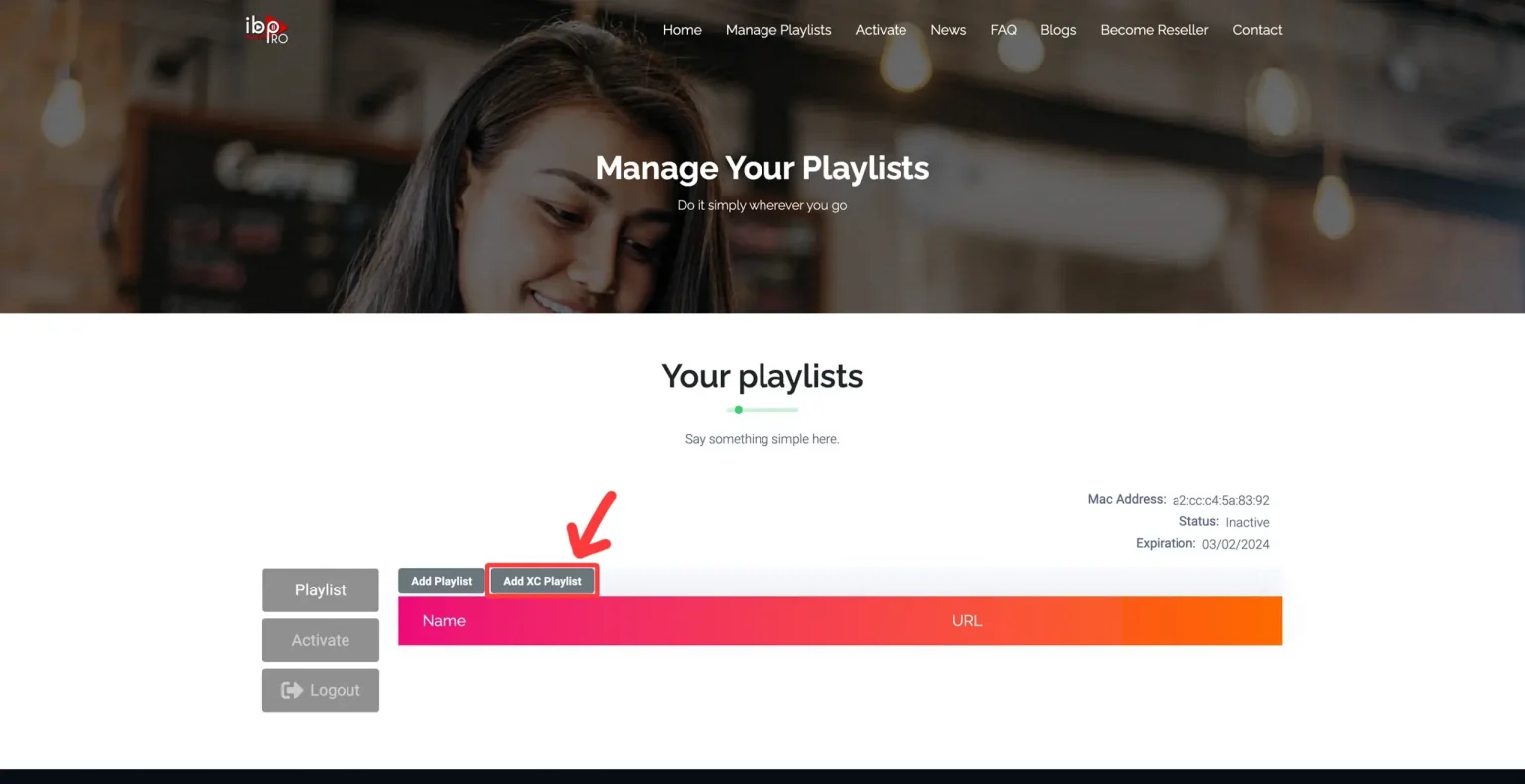
- Enter the Server URL, Username & Password provided in your email.
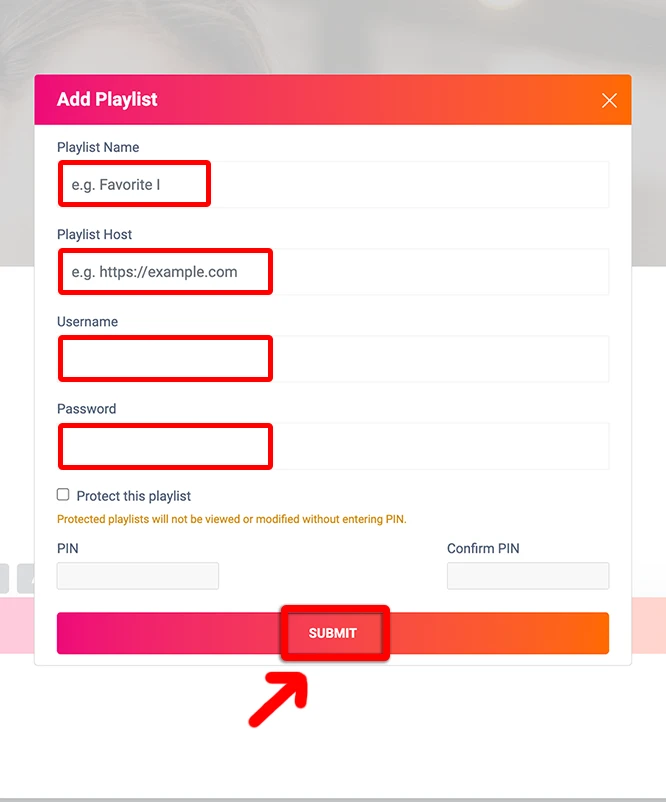
- Restart the App on your TV.
- Open Downloader and enter:
https://www.iptvsmarters.com/smarters.apk
Alternative:https://bit.ly/3sgJDAK
- Click Go and wait for the download.
- Click Install then Done.
- Open Smarters Pro → Select Login with Xtream Codes API.
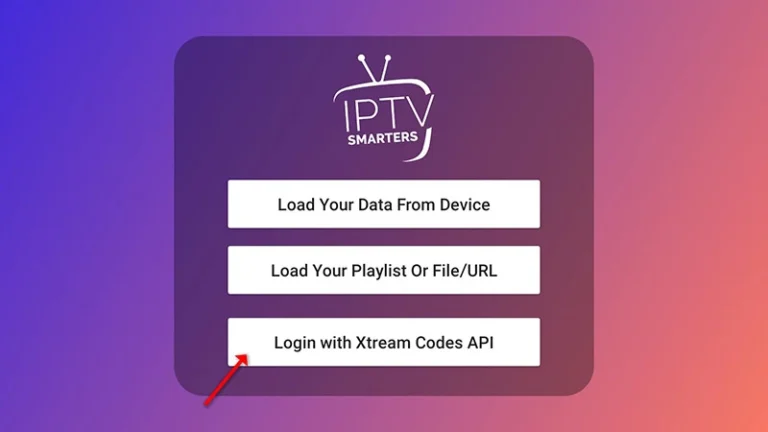
- Enter the details sent to your email.
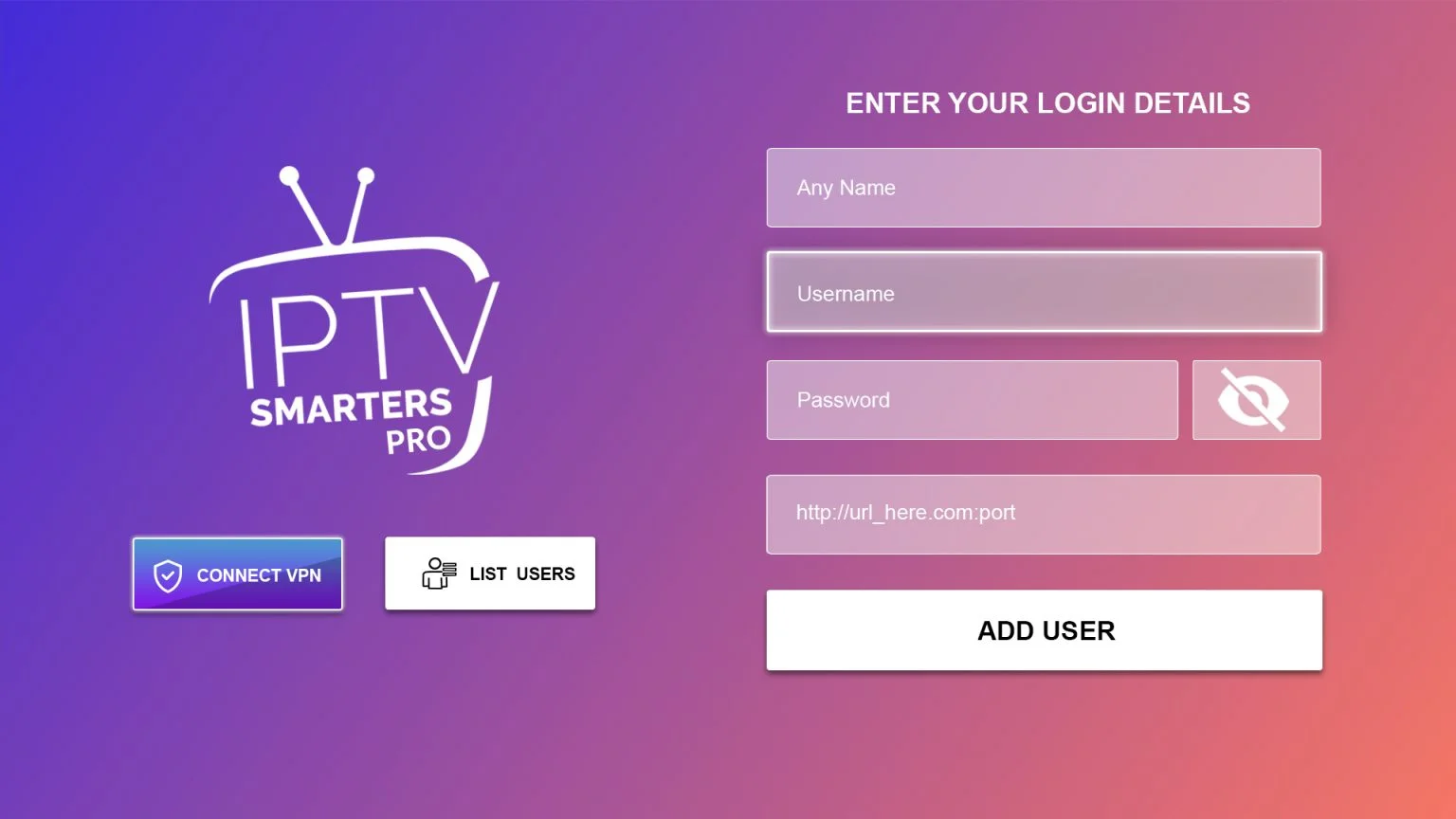
- Open Downloader and enter Code:
366972or719692. - Download and Install TiviMate.
- Open TiviMate → Select Add Playlist.
- Select Xtream Codes login → Next.
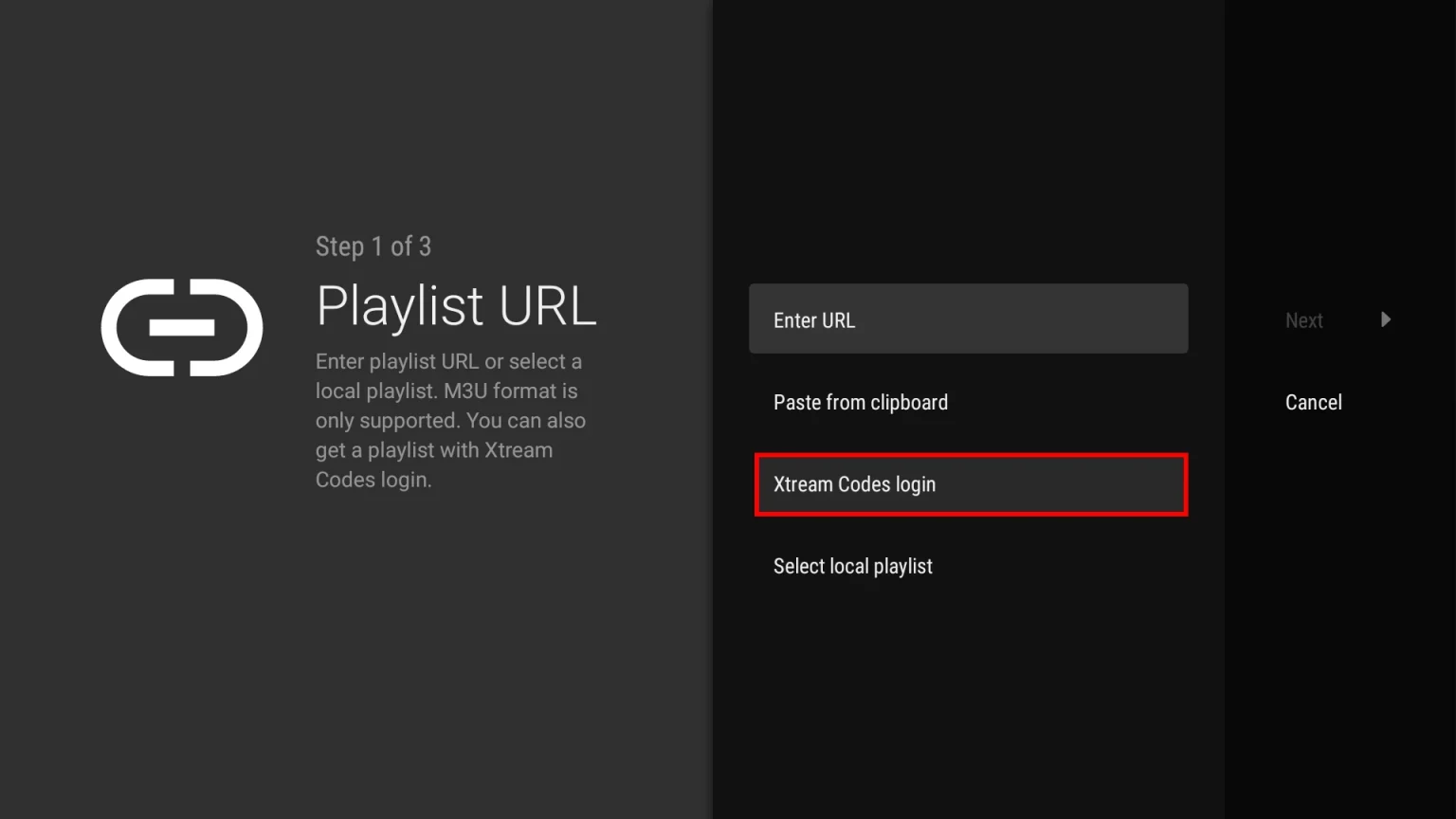
- Enter Server Address, Username & Password from your email.
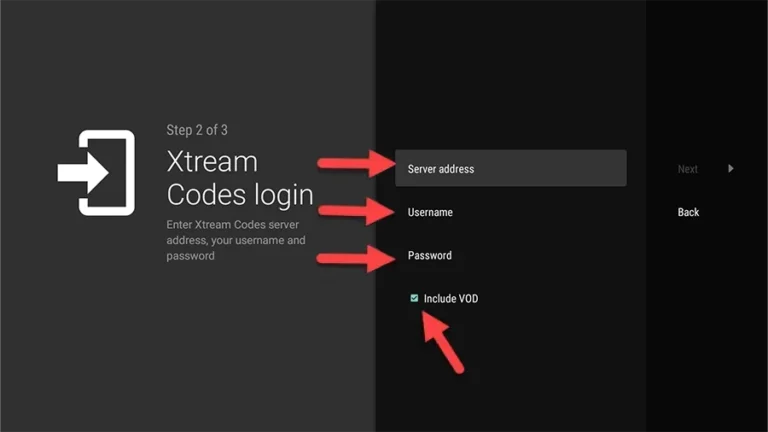
- Go to the Roku Channel Store. Search for “IBO Player Pro” and select Add Channel.
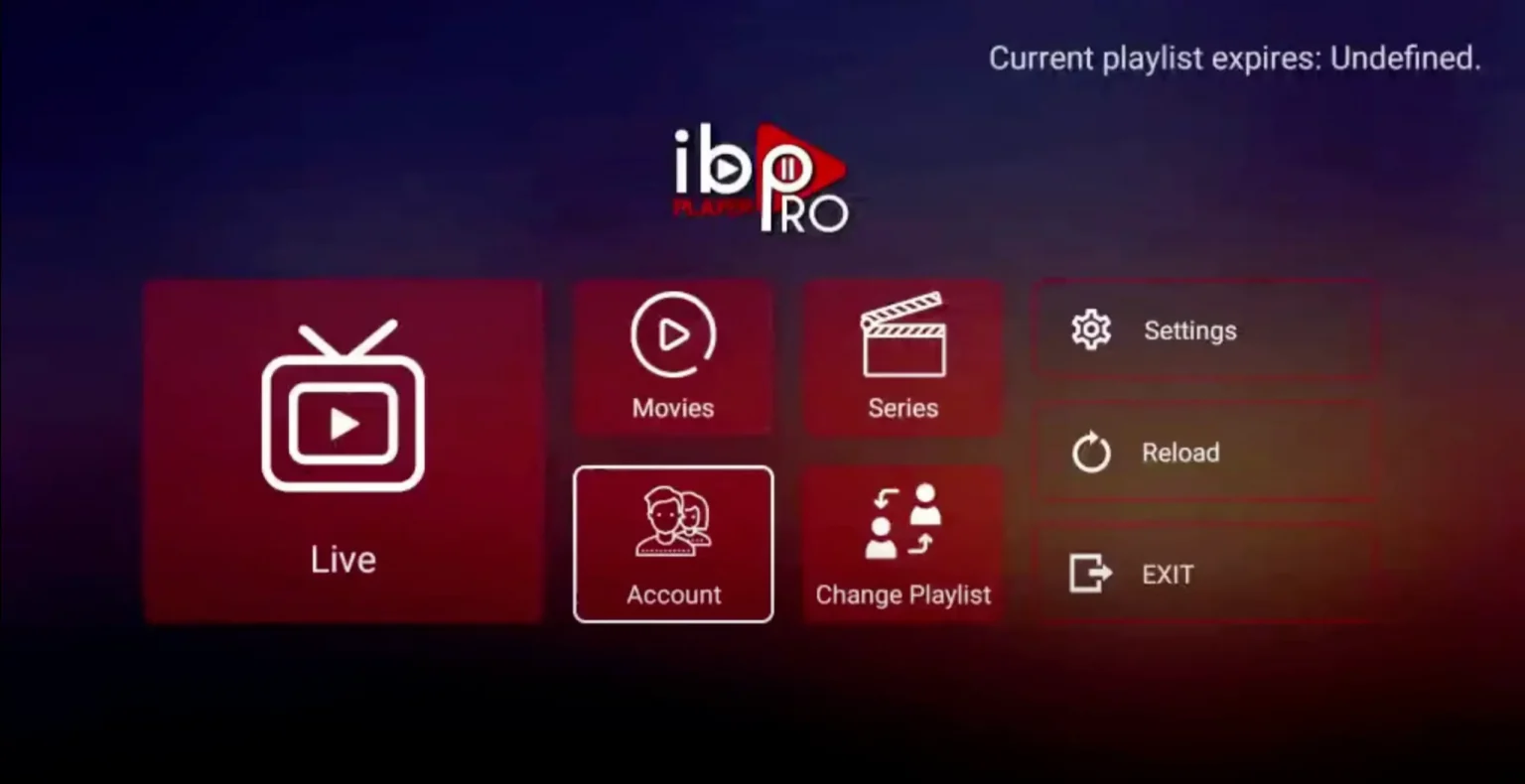
- Open the App → Click on Account to find your Device ID and Key.
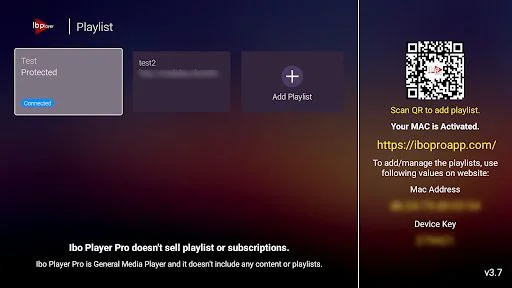
- On your phone/PC, go to iboproapp.com and click Manage Playlists.
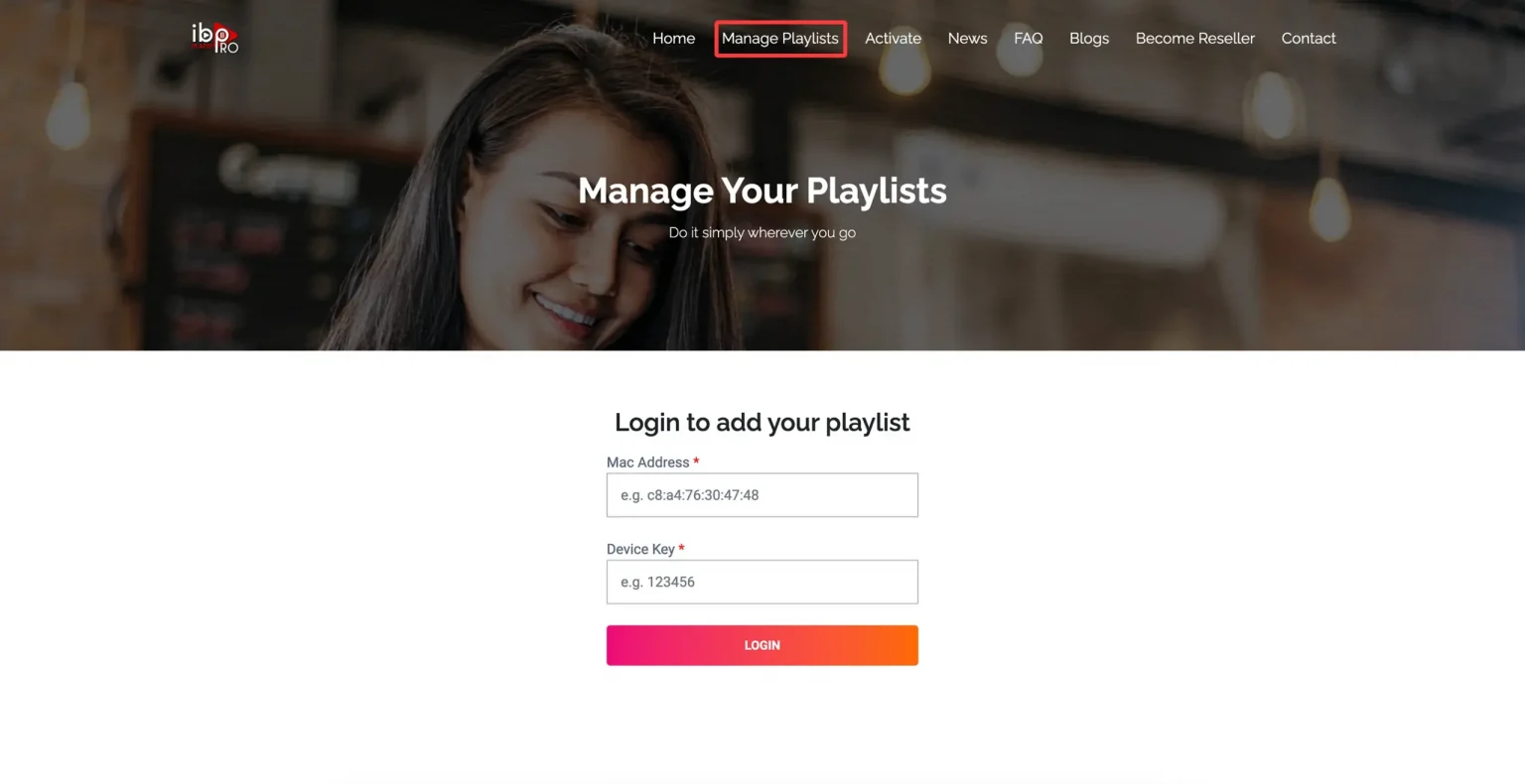
- Login using your Device ID & Key.
- Click Add XC Playlist.
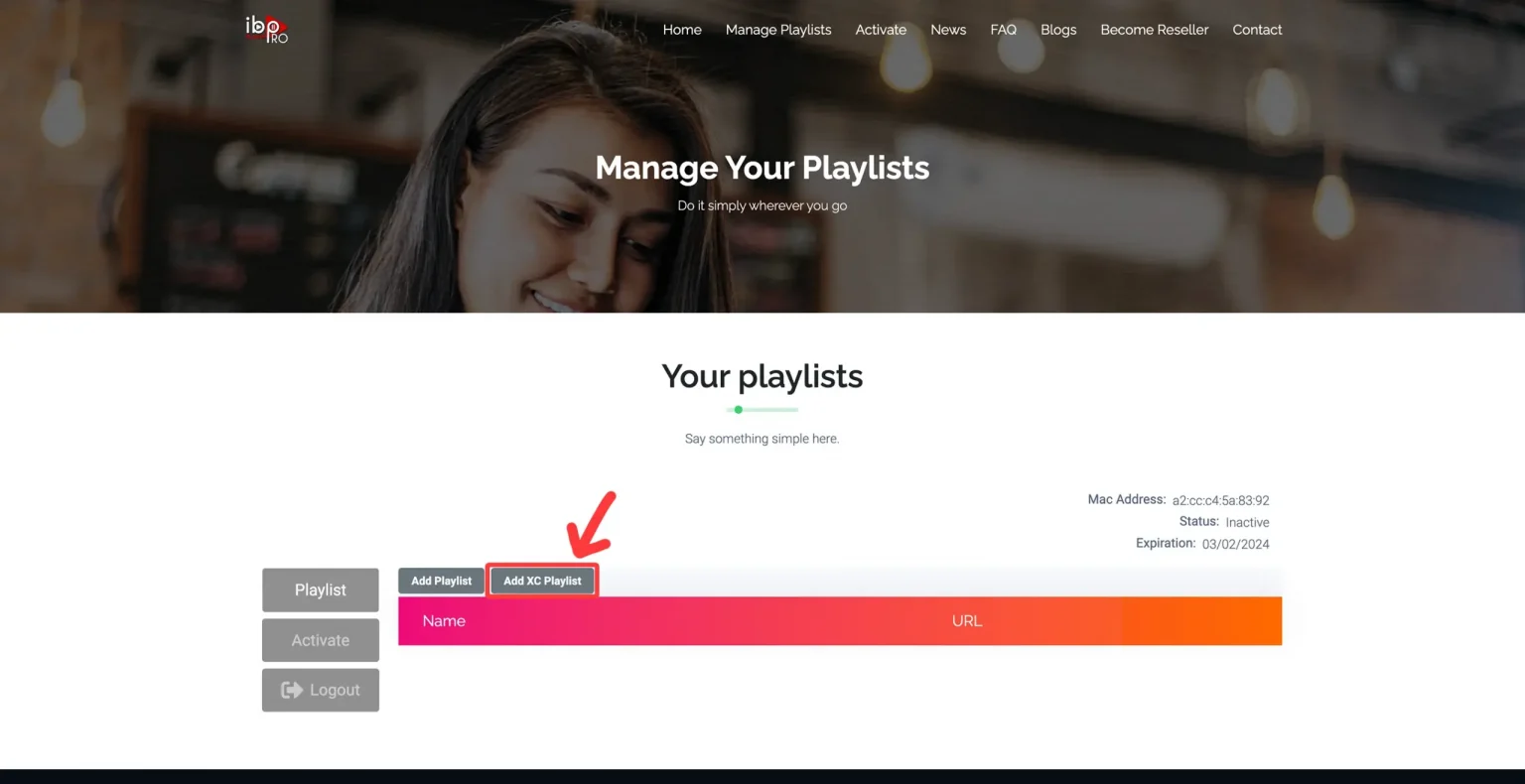
- Enter Playlist Name:
LBLSTREAM.COM. Then enter the Server, Username & Password from your email.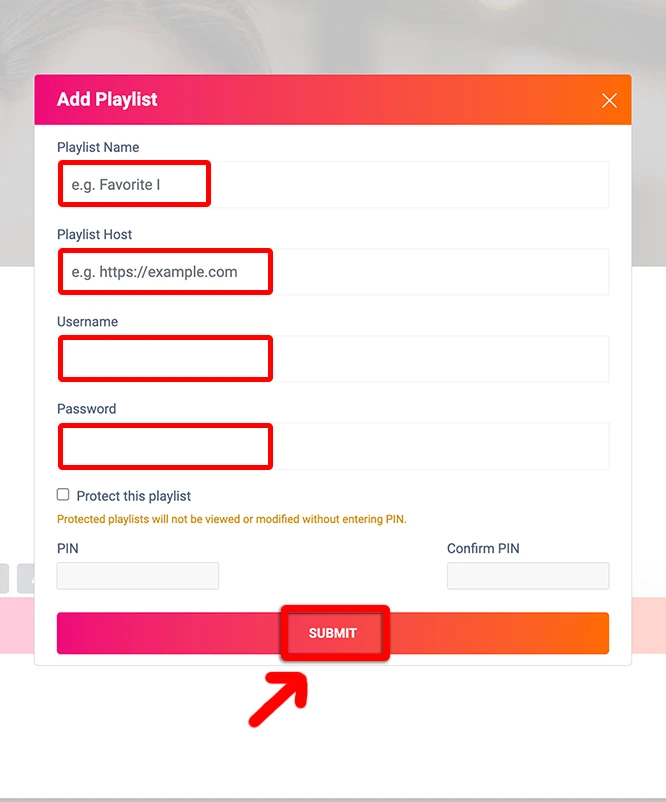
- Restart the IBO Player app on your Roku TV.
Note: IBO Player may include a free trial. After that, you can activate it for a small lifetime fee at iboproapp.com.
Follow this quick video guide to set up in minutes.
You can cast LBLSTREAM.NET directly from your phone to your Roku using the
Web Video Cast app.
- Install Web Video Cast (free) from the App Store or Google Play.
- Open the app, tap the Menu (≡) and select IPTV.
- Tap the (+) button and paste your M3U URL (sent to your email).
- Name the playlist
LBLSTREAM.NET
and save. - Tap the Cast Icon at the top and select your Roku TV.
- Open the playlist, choose a channel, and it will play on your TV!
Important: Ensure your phone and Roku TV are connected to the same Wi-Fi network.
Supported Devices
- Android devices (Phone, Tablet, Box)
- LG Smart TVs (webOS)
- Samsung Smart TVs (Tizen OS)
- Roku devices
Installation Steps
- Open your device’s App Store.
- Search for “ORA IPTV Player” and install it.
- Launch the app and enter your Playlist URL or Xtream Codes.
- Click Connect and enjoy streaming!
Note: Always download from the official store to ensure you get the latest version.
Option A: IPTV Smarters Pro (Best)
- Search for IPTV Smarters Pro in the Samsung/LG Content Store.
- Install and open the app.
- Login with Xtream Codes API (Username, Password, URL).
Option B: Smart IPTV (SIPTV)
- Install Smart IPTV from the store.
- Open it to see your MAC Address on screen.
- Go to siptv.eu/mylist on your phone/PC.
- Enter your MAC address and upload your M3U Playlist URL.
- Restart the app on your TV.
Option A: IPTV Smarters (Windows/Mac)
- Download the official app from their website.
- Install, open, and select Add New User.
- Login via Xtream Codes API.
Option B: VLC Media Player
- Open VLC.
- Go to Media > Open Network Stream.
- Paste your M3U URL and click Play.
Recommended Apps
- Smarters Player Lite (Top Choice)
- GSE Smart IPTV
- IPTVX
Simply download any of these from the App Store, select “Xtream Codes API”, and enter your login details.
- Install IPTV Smarters Pro (or Smarters Player Lite) from the Google Play Store.
- Open app -> Login with Xtream Codes API.
- Enter your Username, Password, and URL.
- Click Add User.
Alternatives: TiviMate (Best for TV), Televizo (Best for Phone), XCIPTV.
- Download STBEmu (Free or Pro).
- Open App -> Settings -> Profiles -> Add Profile.
- Select Portal Settings -> Enter the Portal URL we provided.
- Go back to STB Configuration -> Find your MAC Address.
- Send us this MAC Address to activate your subscription.
- Restart the app/portal to load channels.
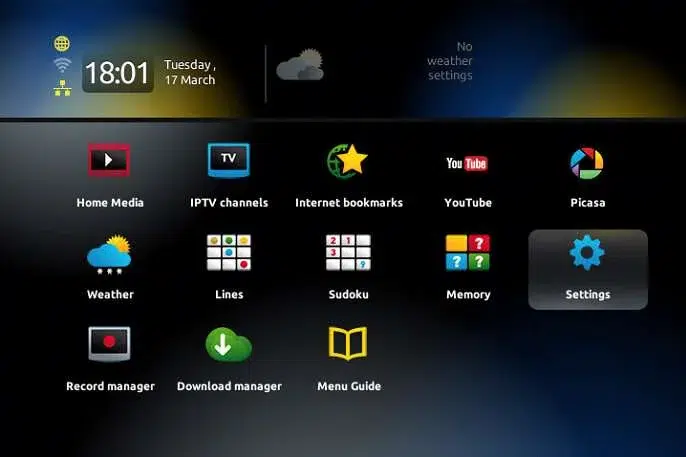
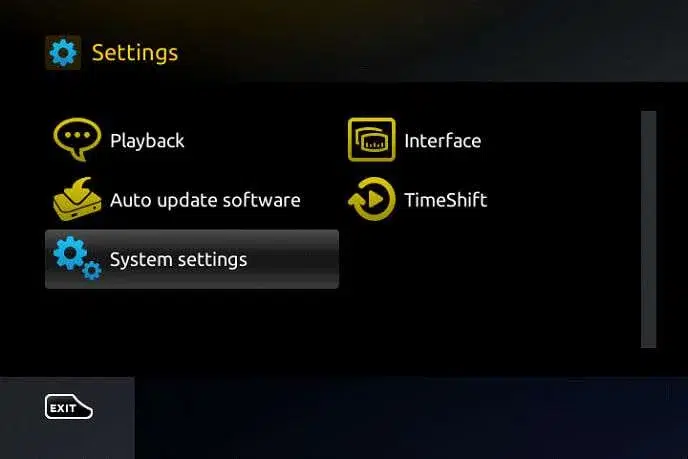
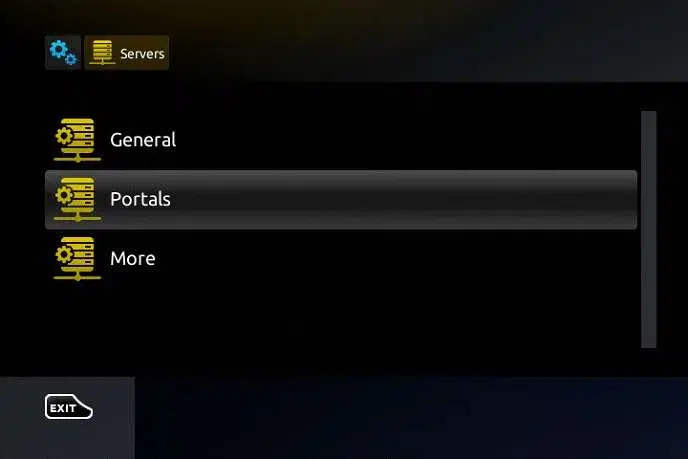
- Go to Settings →
System Settings →
Servers →
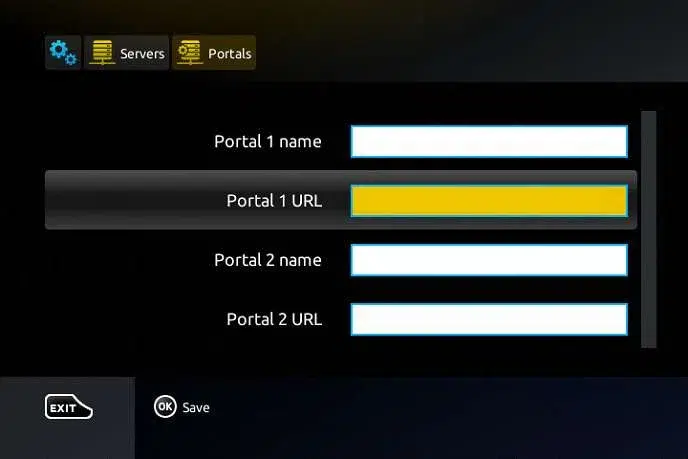
Portals. - Set Portal 1 Name:
LBLSTREAM.NET - Set Portal 1 URL:
(The Portal URL from your email) - Send us your MAC Address
(found on the sticker underneath the box). - Save settings, go back, and select
Restart Portal.
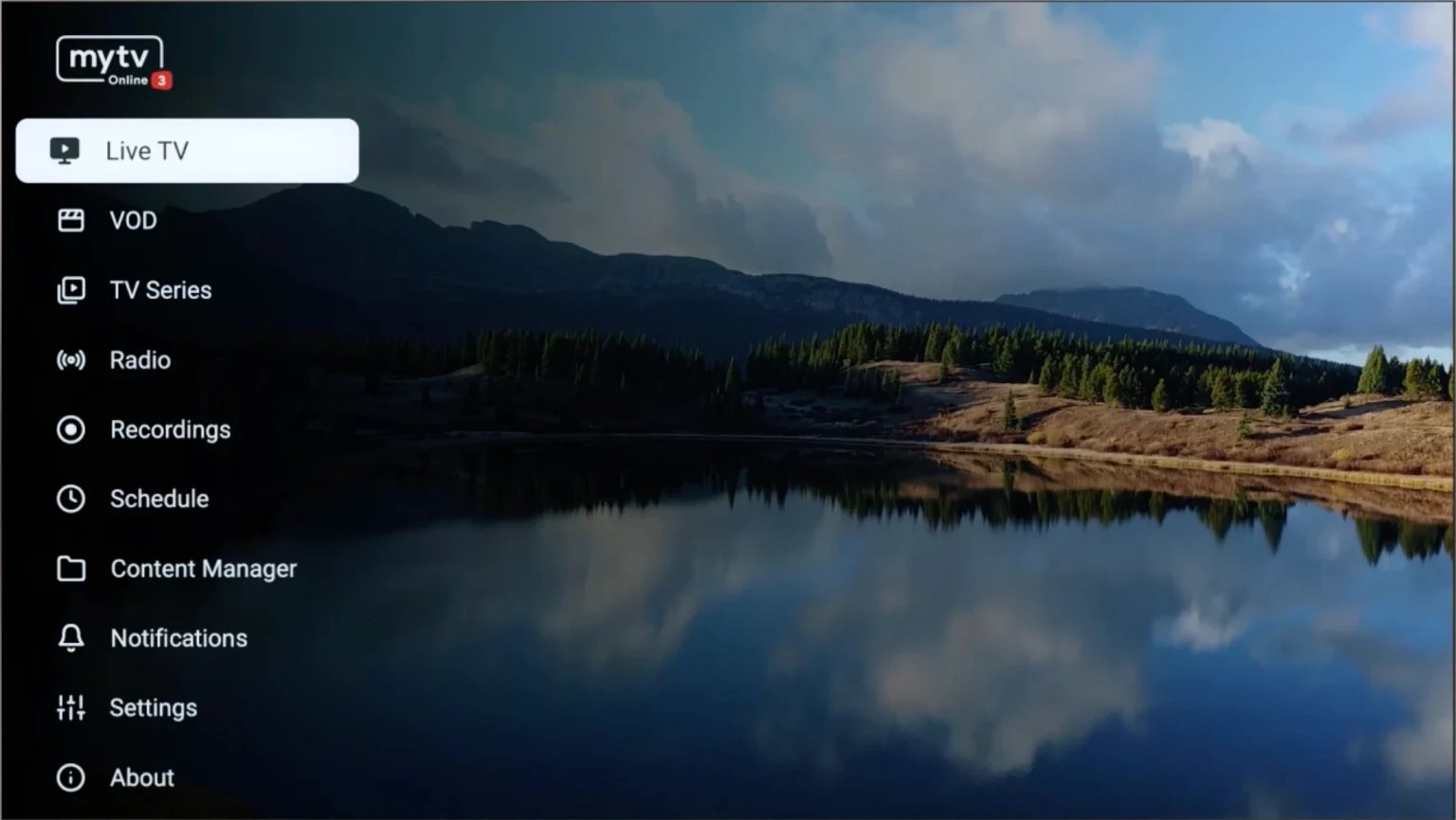
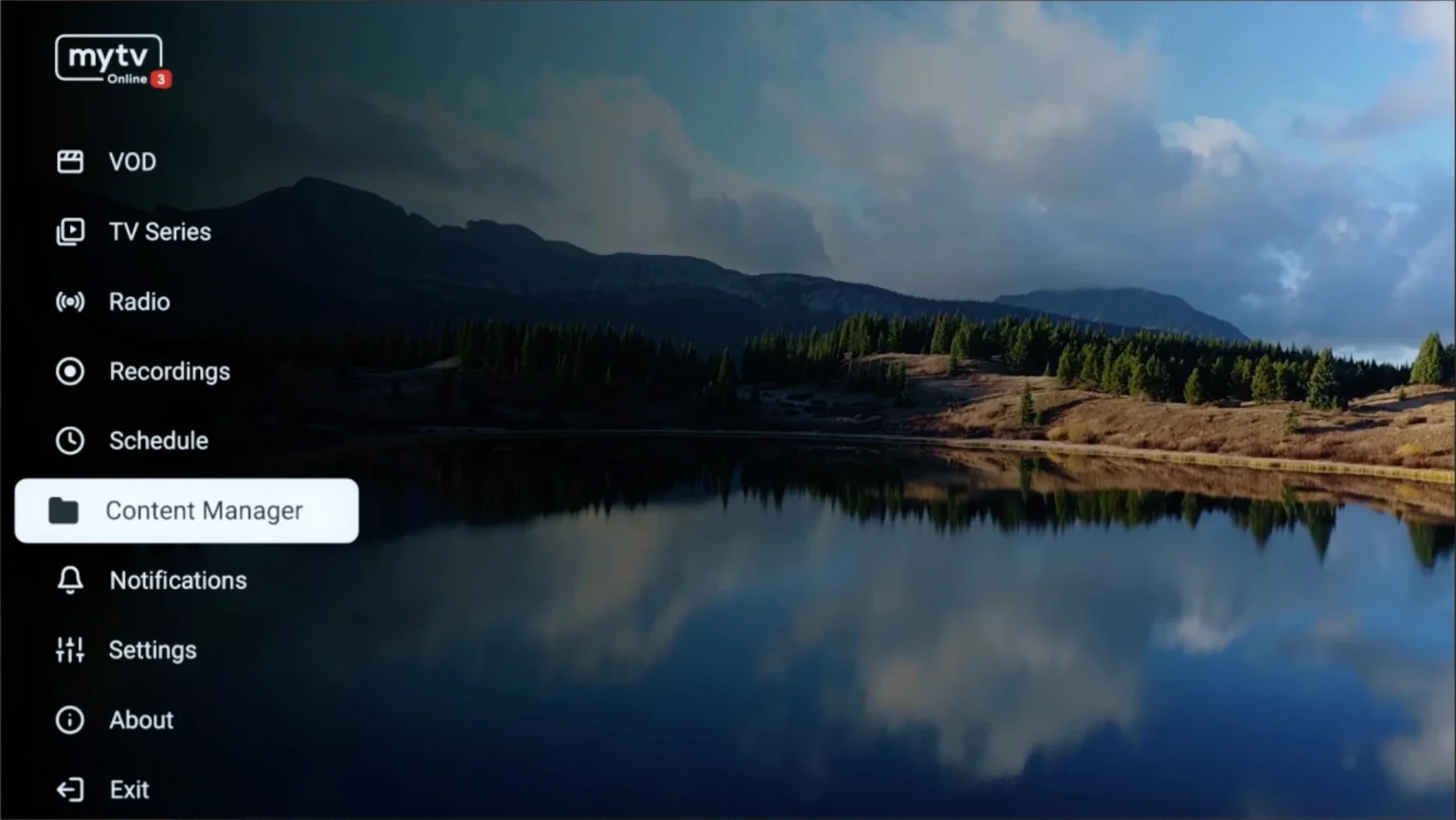
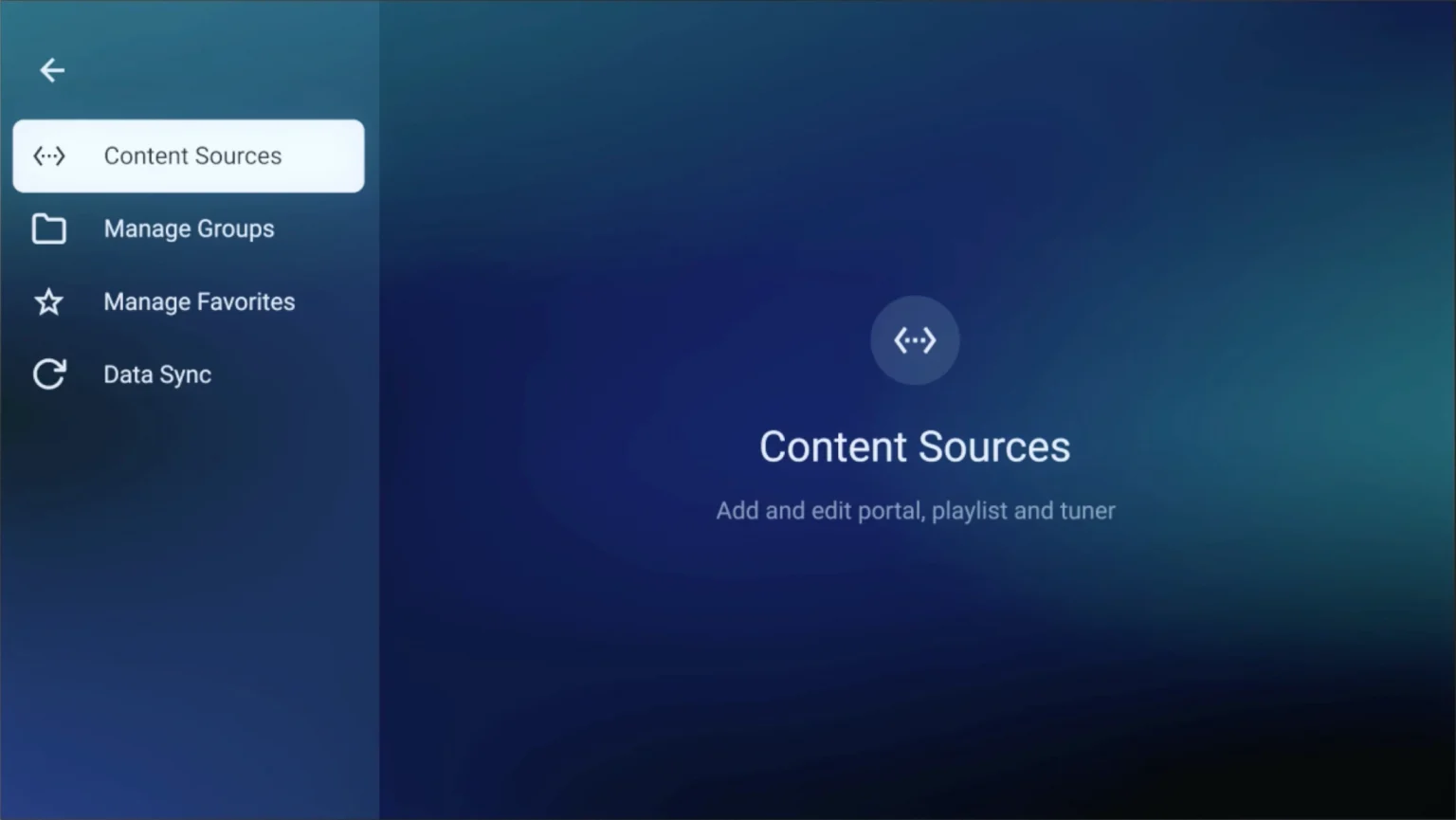
- Open MyTVOnline 2 or 3.
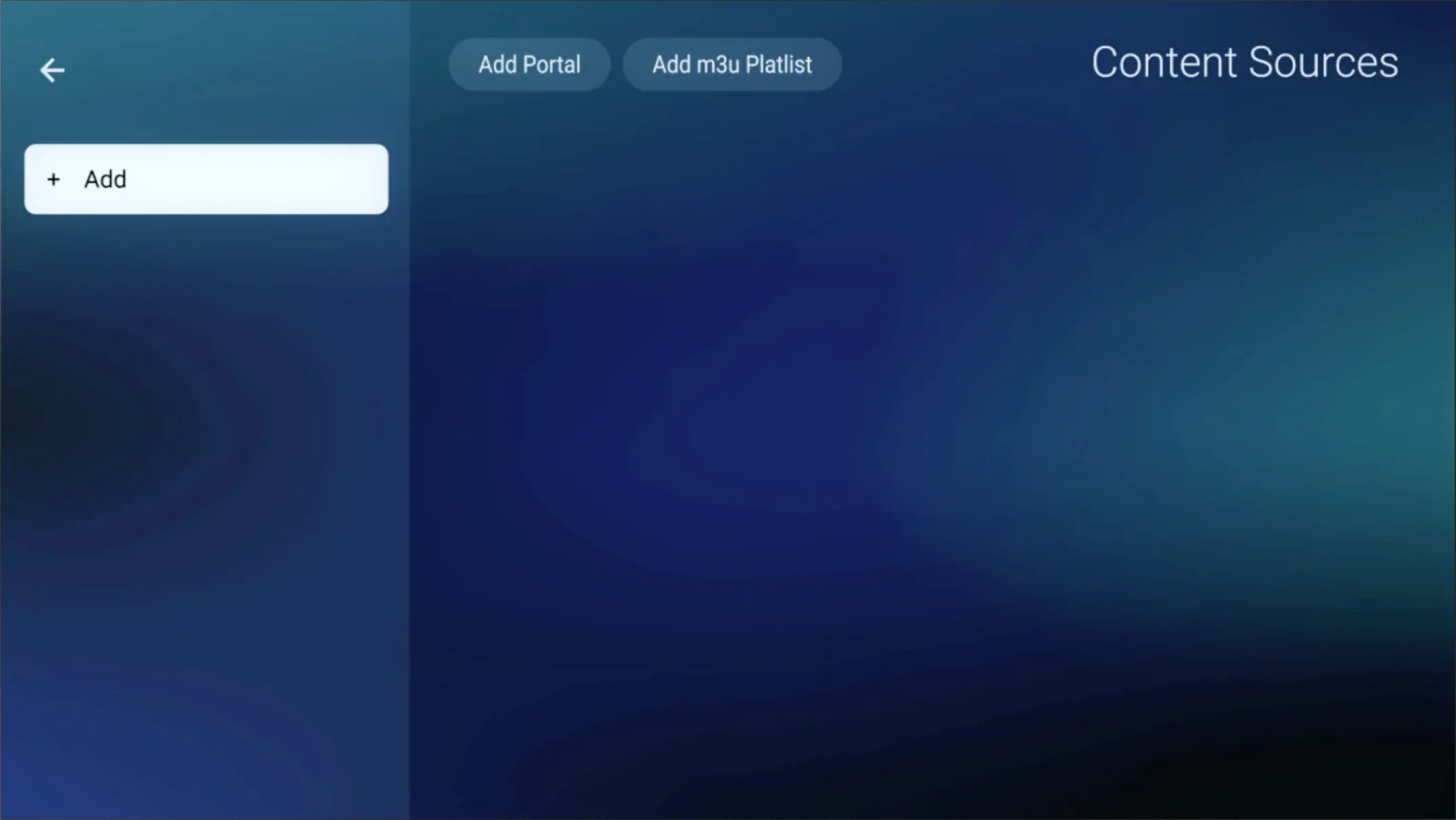
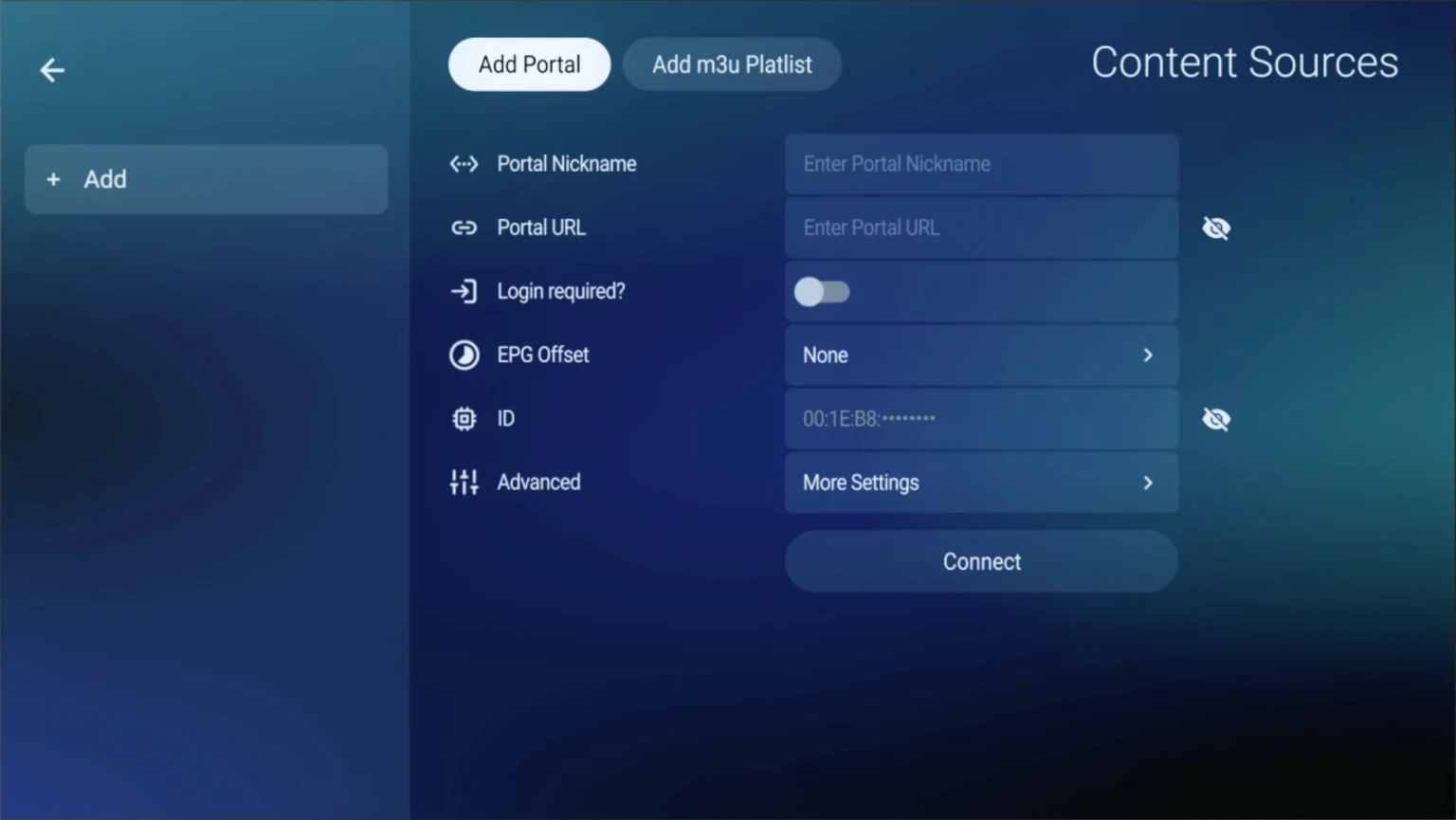
- Go to Content Manager → Add Portal.
- Enter Nickname:
LBLSTREAM.NET - Enter the Portal URL provided in your email.
- Make sure Login Required is unchecked (we use MAC activation).
- Send us your MAC Address (starts with 00:1A:79…).
- Click Connect.
- Go to Live TV →
Server Line / MAC Server. - Select Add Server.
- Enter Server Name:
LBLSTREAM.NET
and paste the Portal URL. - Send us your MAC Address for activation.
- Save and Connect.
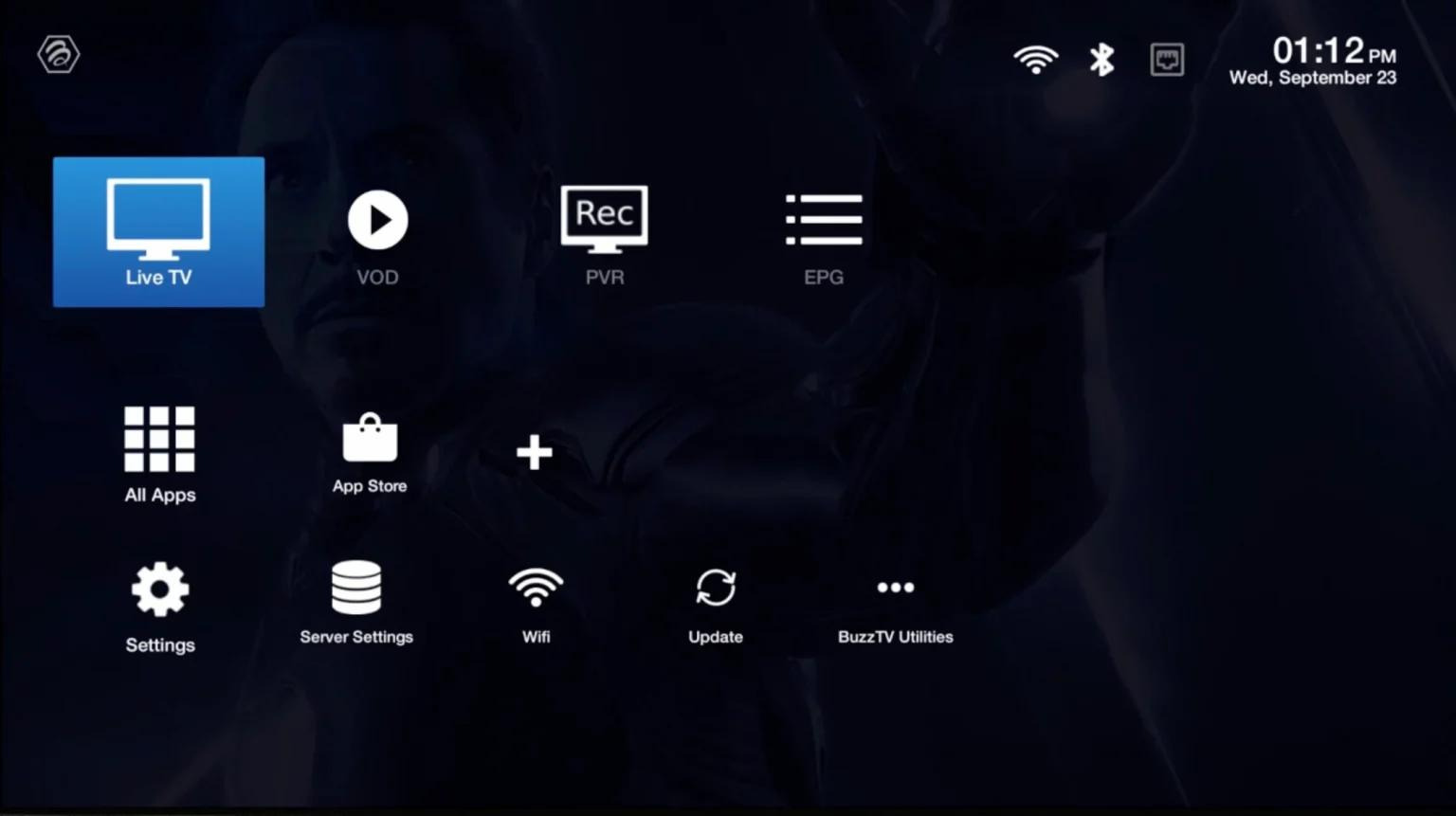
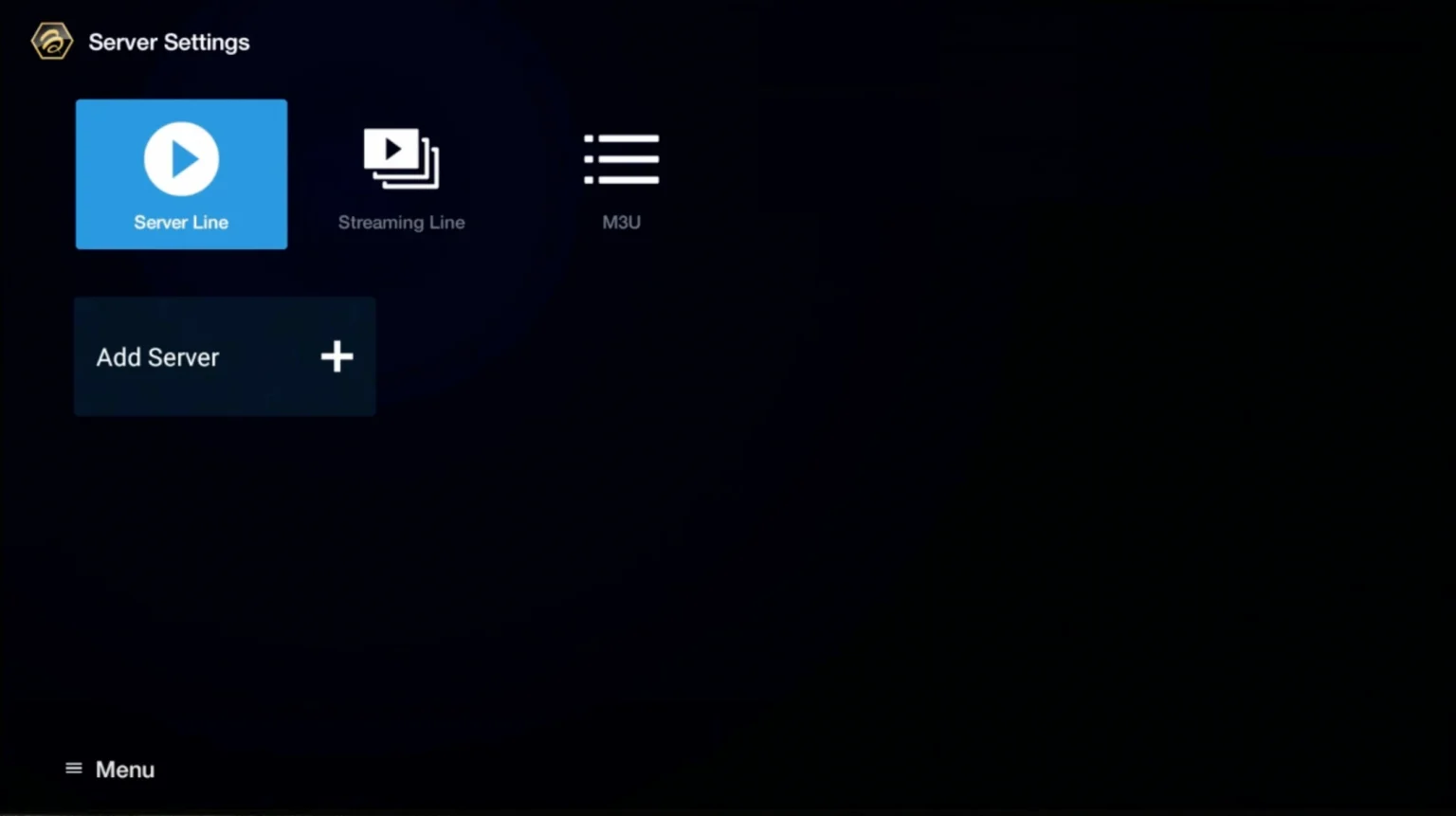
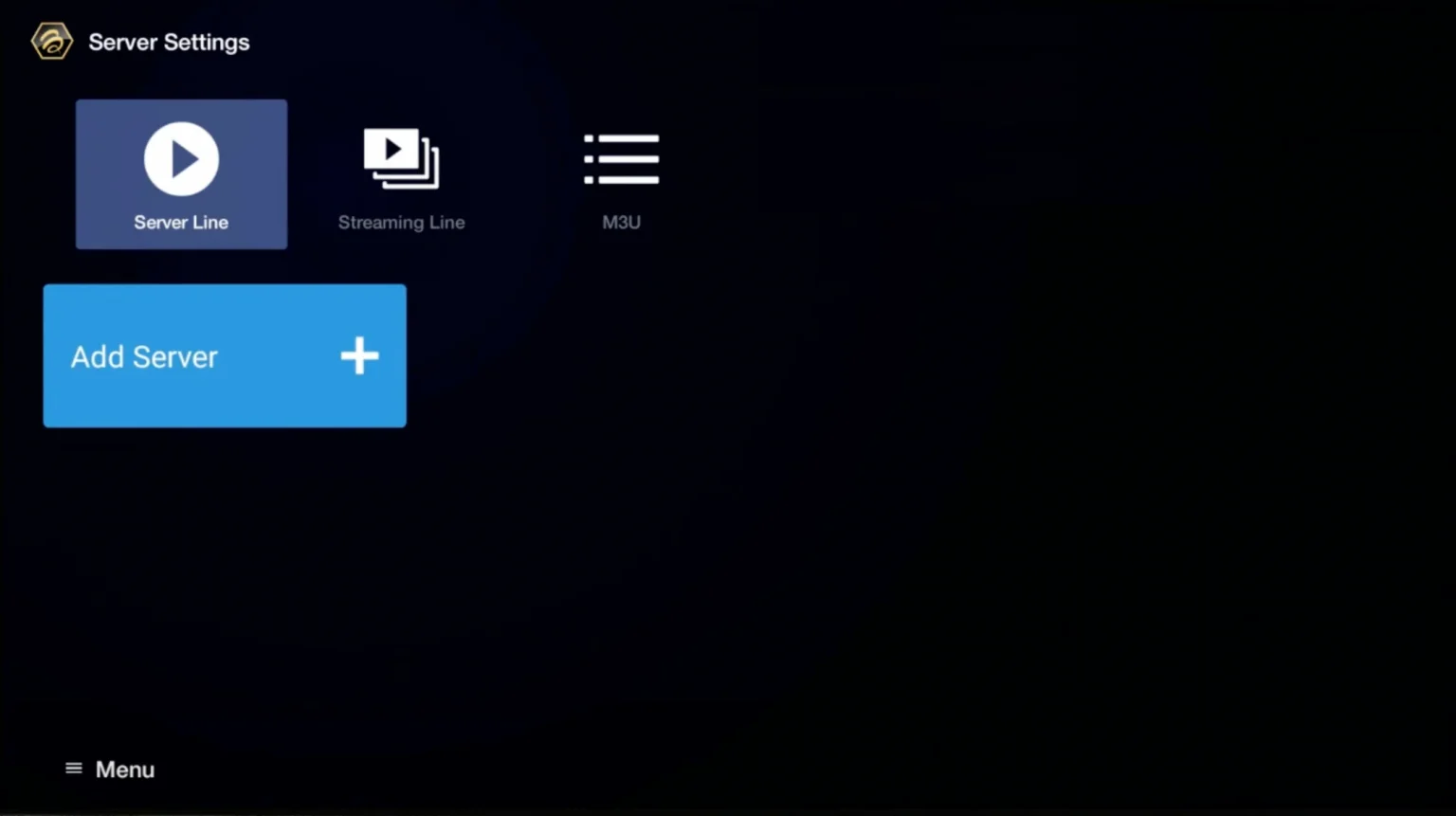
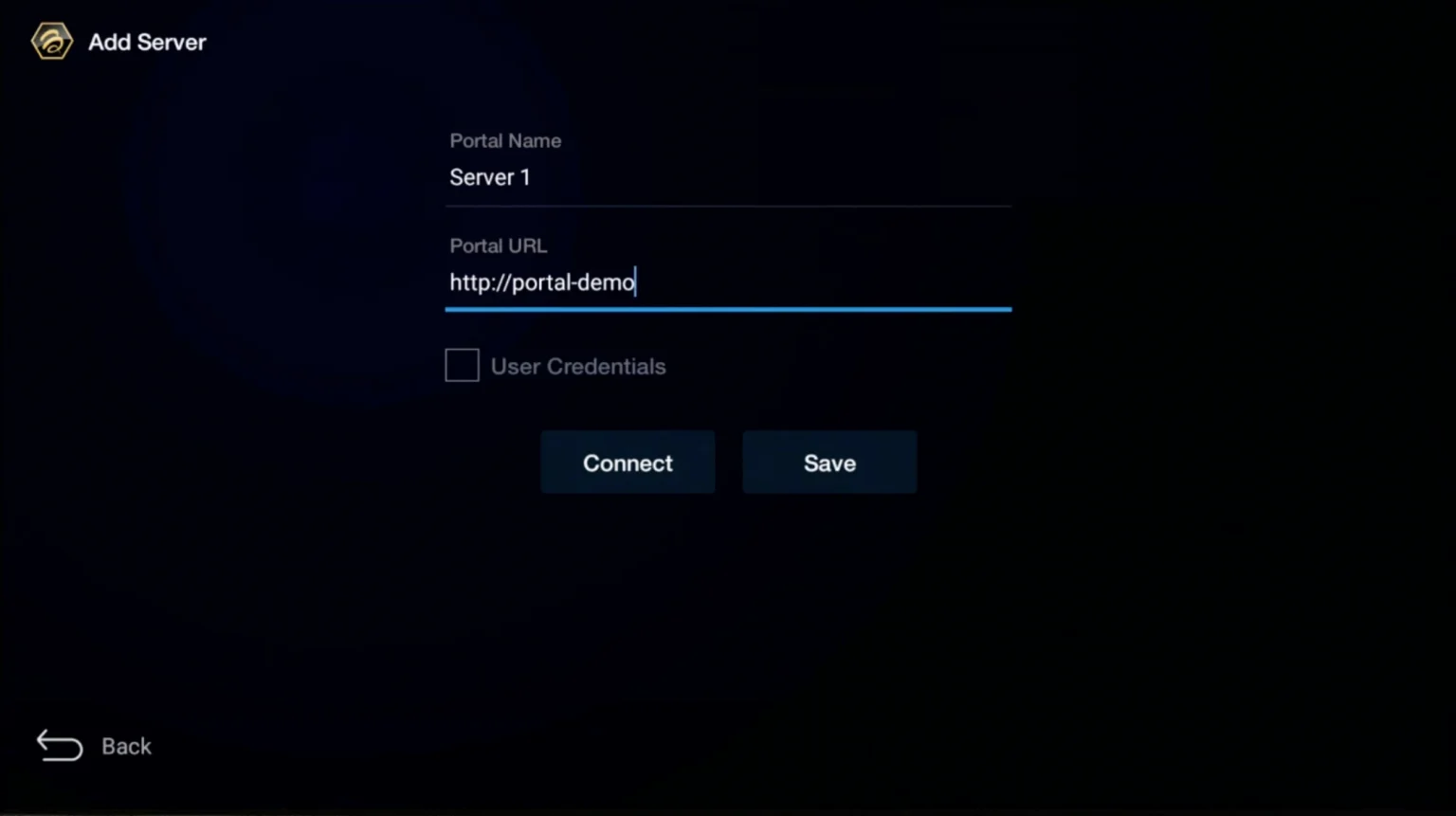
If your TV doesn’t support apps, use Web Video Cast.
- Install Web Video Cast on your phone.
- Open the menu -> Select IPTV -> Click +.
- Paste your M3U URL and save.
- Connect to your TV (Chromecast, Roku, DLNA) using the cast icon.
- Play a channel on your phone, and it will appear on the TV!